- Open an open pull request on GitHub which normally has the following format:

- Open a terminal for running a git command (e.g. bash, cmd, powershell, etc...).
- Navigate to the location where your git forked repository was cloned.
- Download a copy of a pull request using the following command:
git fetch upstream pull/<ID>/head:<NEW BRANCH>
Where the variables can be describe as the following:
<ID> This is the associated code attached to the pull request. Normally has the following format #<ID> (e.g. #123) or see the format from step 1. <NEW BRANCH> This is the unique desired branch name on your fork. - Switch to the new branch and do what you want (e.g. code review, testing) using the following command:
git checkout <NEW BRANCH>
Category: Git (Page 2 of 2)
Ignoring files in git can be in the well known .gitignore file or in the .git/info/exclude file.
What's the difference between the two files?
|
File |
Description |
|
.gitignore |
Operates at the repository level and everyone is sharing this file. |
|
.git/info/exclude |
Operates at the local working directory (i.e. normally the root of the cloned repository) level and only you has this file. |
Exclude File
If .git/info/exclude file is present it must have the same formatting rule as the .gitignore file.
If the file to be ignored was already in the repository and you can still see it as modified. You can execute the following command:
git update-index --assume-unchanged <FILENAME>
Example:
git update-index --assume-unchanged config/database-config.xml
The reversal of this command is the following:
git update-index --no-assume-unchanged <FILENAME>
If your GitHub forked master branch is ahead from the upstream's master branch and you wanted to make it even (i.e. also lose some work). The following procedure might help you.
Note: If you have your default branch protected perform steps 1, 2, 3, 7, 8 and 9. Otherwise just do steps 4, 5 and 6.
- Open a terminal (i.e. powershell, cmd, bash) and checkout the master of the upstream to a temporary branch (i.e. this could be anything) using the following syntax:
git checkout -b <temporary-branch> upstream/master
Example
git checkout -b temp-branch upstream/master
Where <temporary-branch> is temp-branch.
- Push the temporary-branch to your origin using the following syntax:
git push origin <temporary-branch>
Example
git push origin temp-branch
Using the <temporary-branch> from the example in step 1.
- On your browser, access your forked GitHub project and update the default branch to your temporary-branch.
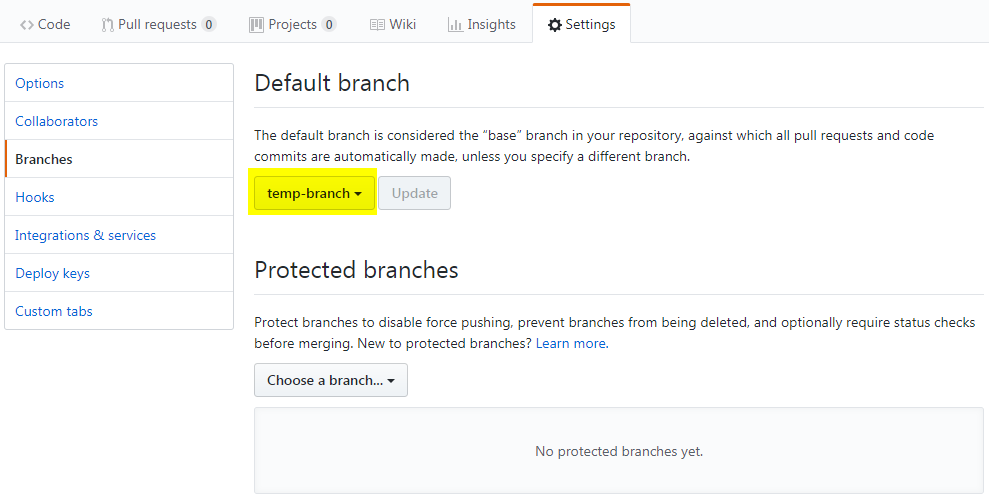
- On your terminal (i.e. powershell, cmd, bash), switch to your master branch using the following command:
git checkout master
- Reset the master based on the upstream's master branch using the following command:
git reset --hard upstream/master
- Push the update to your master using the following command:
git push origin master --force
Note: If you didn't do step 3 this and the branch is proctected command will fail.
- On your browser, access your forked GitHub project and update the default branch to master.
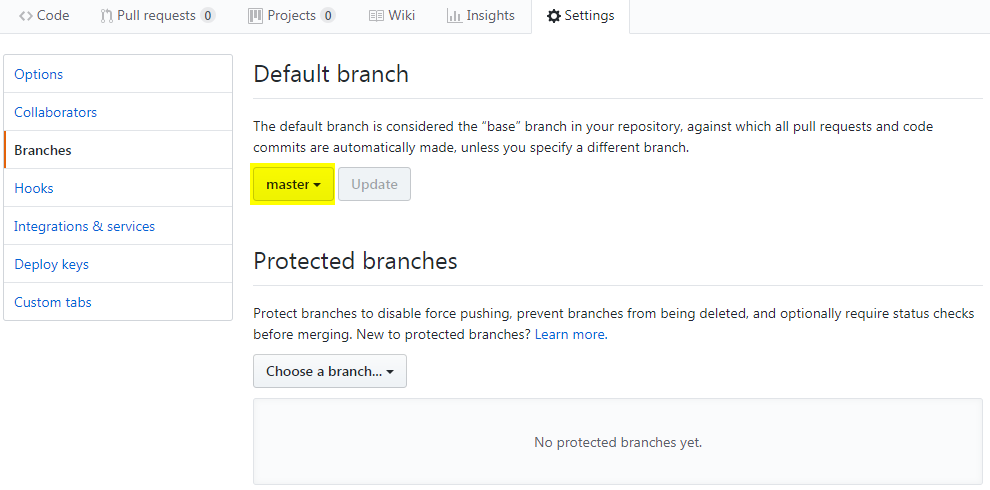
- Going back to your terminal, delete the local temporary-branch using the following syntax:
git branch -D <temporary-branch>
Example
git branch -D temp-branch
Using the <temporary-branch> from the example in step 1.
- Delete the remote temporary-branch on your origin using the following syntax:
git push origin --delete <temporary-branch>
Example
git push origin --delete temp-branch
Using the <temporary-branch> from the example in step 1.
Syntax
git clone -b <branch> <repo>
Example
git clone -b gw9 http://sample.gitrepo.org/r/gw/scm.git
Where:
branch = gw9
repo = http://sample.gitrepo.org/r/gw/scm.git
Recent Comments